How to Use Wordly Custom Fields for Enhanced Post Event Reports
.avif)
.avif)
Many enterprise organizations offer live translation and captions at their meetings and events to boost productivity and accessibility. Wordly makes it easy to set up and manage language access across a wide range of event formats, with low latency and high-quality output for every session.
But great translation is only half the equation. You also need to track and manage usage to make sure your resources are being deployed efficiently. That's why we're continuing to enhance the Wordly platform to make it easier for teams to manage their use.
Why Clean Usage Data Matters
If you've ever pulled a usage report and found the same cost center entered five different ways, like "Sales," "sales," "SALES-01," and one entry with a typo, then you know the real toll of unorganized data. Someone has to clean that up before the numbers are useful, and at enterprise scale, that cleanup time adds up fast.
Wordly Custom Fields fix this problem at the source. This guide will walk you through what Custom Fields are, why you should use them, and how recent updates make managing your Wordly session data easier than ever.
What Custom Fields Do and Why Use Them
Custom Fields let you attach extra metadata to a Wordly session, such as a billing code, department name, or event ID. If your organization runs dozens or hundreds of sessions across regions and teams, custom fields allow you to track and organize your usage data effectively.
Here are key ways teams put Custom Fields to work:
- Tagging sessions by department or cost center so finance can allocate usage without cross-referencing a spreadsheet.
- Tracking conference or event names across dozens of sessions run by different presenters, so everything rolls up cleanly in one report.
- Flagging sessions by region or business unit to compare usage trends across a global organization.
- Requiring a project code at session creation so nothing gets logged without the necessary context.
These are all possible for the org admins to set up themselves, and once they’re configured, every new session inherits the required fields automatically. They're one part of the broader Wordly platform, where session management, glossaries, and reporting all live in the same place.
New Feature Updates: Cleaner Data and Self-Service Management
Wordly Custom Fields have recently been upgraded so that managing organizational data is simpler and more flexible.
To make data entry even more accurate, admins can choose from several distinct field types when creating custom fields:
- Text — free-form entry for names, codes, or notes
- Numeric — for values like invoice numbers or headcounts, automatically blocking non-numeric characters
- Single Choice — a dropdown of predefined options, so users pick from a consistent list instead of typing free text
- Multi-select — for sessions that need to be tagged with more than one value at once
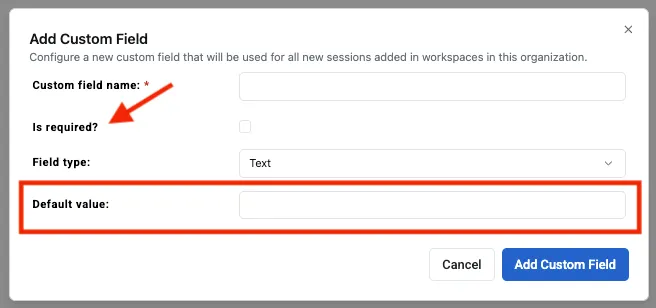
Admins can also mark any field as required, which blocks session creation until it's filled in, and set a pre-populated default value to save users a step. Put together, a dropdown of approved cost centers is a lot harder to get wrong than a free-text box, which means that every session gets tagged consistently.
Custom fields join custom glossaries as another way to standardize how your organization uses Wordly, one for terminology accuracy, the other for reporting accuracy.
Manage It Yourself, No Waiting Required
Custom fields now live in a dedicated page under Organization Admin tools in the Portal, right from the left side menu. Org admins can create, edit, and delete fields directly, with changes reflected immediately across sessions.
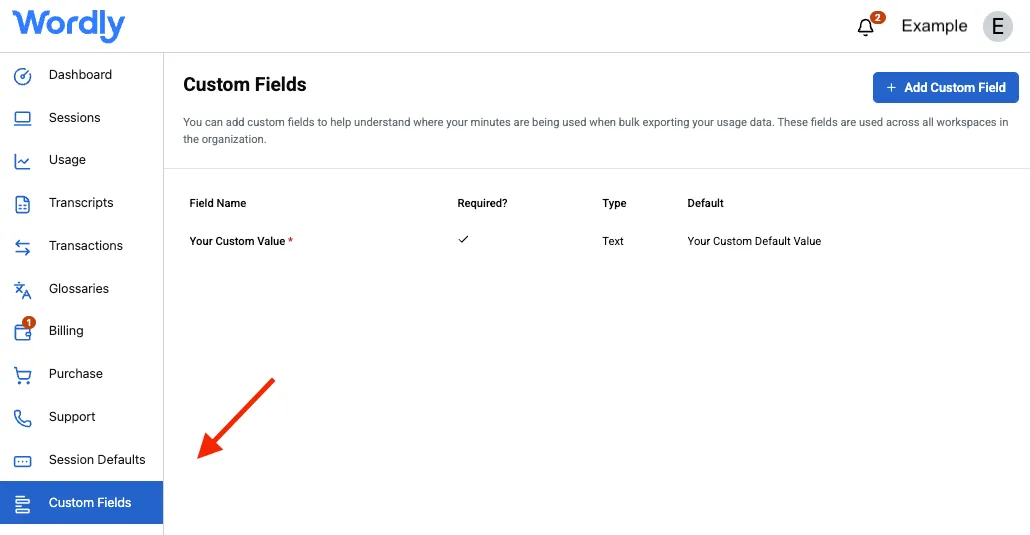
If your organization already had personal custom fields tied to individual profiles, those have been automatically migrated into this same org-level page. Your existing field names, types, and values carry over with no data loss, and any sessions that already used those fields keep working exactly as before.
Why This Matters as You Scale with Workspaces
Wordly Workspaces gives organizations one place to standardize and manage live translation at scale instead of leaving it to individual users. Just as Workspaces support centralized terminology/glossary management to keep terms consistent, structured custom fields let organizations keep their reporting data consistent, no matter how many teams or regions are generating sessions. It's part of the same foundation that lets Wordly meet enterprise security and compliance standards at scale.
For an org admin managing sessions across regions, business units, or event types, that means:
- Cleaner reports, less cleanup. Structured field types like Single Choice and Multi-select improve admin analytics by reducing the free-text inconsistencies that make usage reports harder to reconcile.
- Faster changes. Add a new cost center or event category the moment you need it, directly from the Portal.
- One system, org-wide. Whether your organization is centralizing session management under Workspaces or simply tracking usage across departments, your custom fields now live in the same place your other org-level administration does.
Getting Started
If you're an Organization Admin, you'll find the new Custom Fields page in the Portal's left side menu, under your Organization Admin tools. From there you can add fields, choose a type, mark fields as required, and set default values for your whole organization.
For step-by-step setup instructions, visit our Knowledge Center article on Setting Up Custom Fields.
Want to see how Custom Fields fit into a broader, secure environment for managing multilingual sessions across your organization? Learn more about Wordly Workspaces or get a demo to see it in action.


.png)
